


 Log in to the system.
- QThe video keeps buffering or lagging.
-
A
We recommend watching lectures on a stable internet connection. Please check your internet, Wi-Fi, modem, and router.
If the video still does not play smoothly, please uninstall the player and reinstall it.
- QCan I change the playback speed?
-
A
Yes. You can adjust the playback speed using the speed control at the bottom of the video player.
Click the ▼ button or press X to decrease the speed by 0.1 (minimum 0.5x).
Click the ▲ button or press C to increase the speed by 0.1 (maximum 2.0x).
Press Z to reset the speed to 1.0x.
- QI see a message saying there is not enough storage space.
-
A
If you are using an SSD or your PC HDD has limited remaining space, the disk space may become insufficient after watching video lectures.
In this case, please use the player’s Clear Cache function as described below.
[Windows – IE, Firefox, Opera, Safari Users]
1. Click the Settings icon at the bottom right of the player.
2. Click the Trash Bin icon at the top right.
3. Click the trash bin button at the bottom of Cache Setting / Remaining Cache Info.
4. Cache files will be cleared.
[Windows – Chrome (v45 or later), Windows 10 – Edge Users]
1. Click the tray icon on the Windows taskbar.
2. Hover over the icon and right-click.
3. Click the Clear Cache menu.
4. Cache files will be cleared.Alternatively, you can open Windows Explorer and go to:
Documents > KollusPlayer3 > Files, then delete files with names ending in _c.(Note: Files can only be deleted after closing the player.)
- QCan I take courses on mobile devices and tablets?
-
A
Yes, most smartphones and tablets support course playback.
However, some customized devices, such as certain Chinese-manufactured smartphones (e.g., Xiaomi) and LG U+ Homeboy G Pad devices, may not support video playback.
- QI see a “Device limit exceeded” message.
-
A
Our site uses Kollus Player, and up to five devices can be registered per account.
If this message appears, please contact the administrator to request a device initialization (reset).
- QAre there any device or browser version restrictions? (MacBook, Safari, Android, etc.)
-
A
Content can be played on the latest versions of HTML5-supported browsers such as Google Chrome, Microsoft Edge, Mozilla Firefox, Apple Safari, and Opera using Kollus Player.
- QI cannot access the site or play videos when using a company, government office, or public network.
-
A
In corporate or public institution environments, security programs or network firewalls may block the installation or execution of programs or IP addresses that are not normally permitted.
To check this, click the Windows Start button and Run, type cmd, and press Enter. Then the Command Prompt window will appear.
(For Windows 10, there is no Run button. Click the Windows icon at the bottom left of the screen and start typing immediately.)
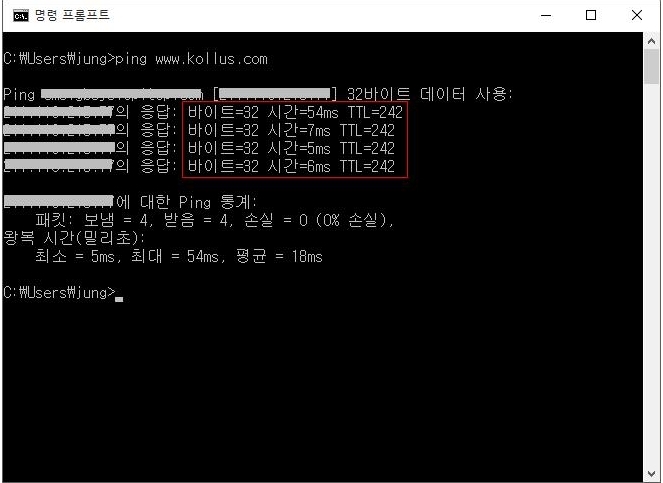
In the Command Prompt window, type ping www.kollus.com
and press Enter.
If the response time is shown as 100ms or less, the connection is normal.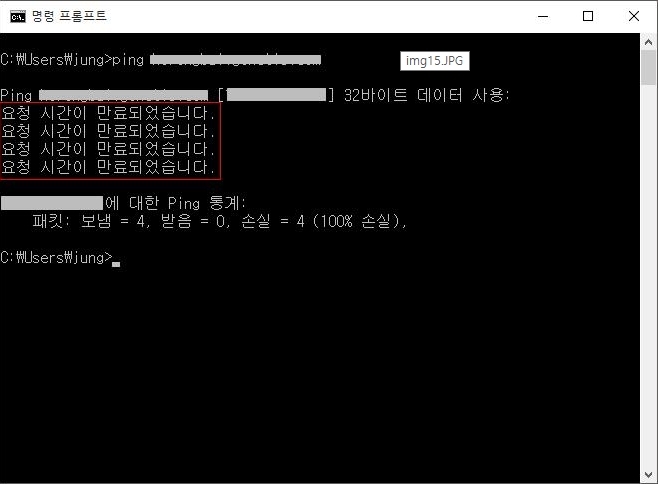
However, you may see a screen showing the message “Request timed out.”
If this message appears, it means your PC cannot properly connect to the server for content playback.In this case, please contact your company or institution’s network administrator and request firewall access based on this information.
- QThe player screen is distorted or broken.
-
A
Kollus Player uses True Color (32-bit) mode and hardware acceleration, so the screen may not display properly depending on your system settings.
The instructions below are based on Windows XP. For Windows 7 / Vista or later versions, the settings may vary depending on your monitor and graphics card, so please refer to the manufacturer’s manual for your device.
(STEP 1)
Right-click on the desktop → Click Properties → Click the Settings tab.
(STEP 2)
When the screen appears, check the Colors section and change it to True Color (32-bit) or Highest (32-bit), then click the Advanced button.
(STEP 3)
Click the Troubleshoot tab, move the Hardware Acceleration setting to None, and then click OK.
- QI see error code -8606 when playing a video. (“A DB error has occurred. Please check storage in settings.”)
-
A
If error code -8606 appears, please uninstall the Kollus Player and then reinstall it.
- QI received the following message: “Code: 8028 Network connection is unstable and cannot connect to the server.”
-
A
Please close all running browsers and restart them. (This issue is not related to cache or cookies.)